How to import a PSD into BUG Clicker
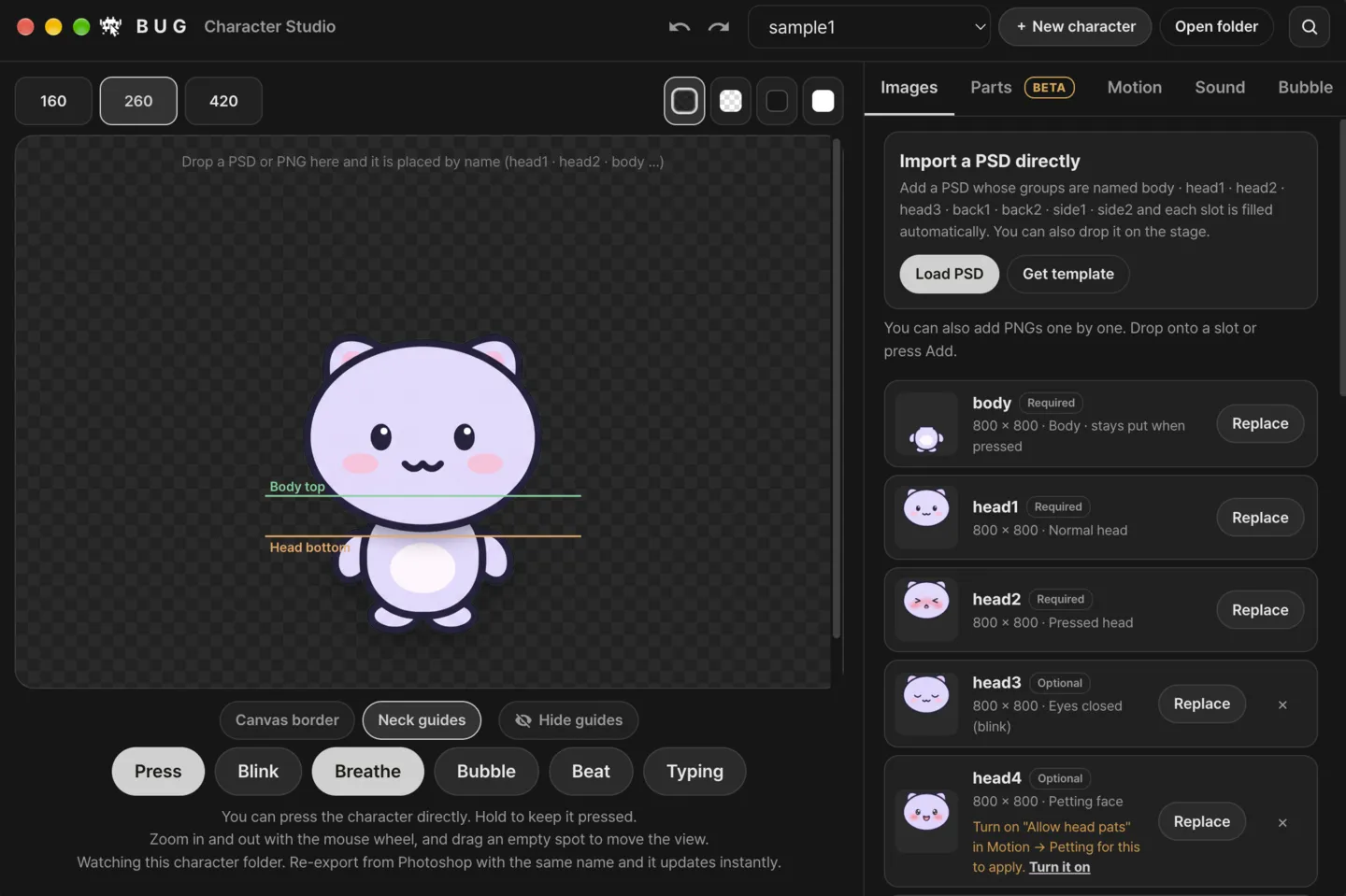
BUG Clicker's PSD import reads the groups by name: head1 (the normal head), head2 (the head when clicked) and body, drawn in place on the same square canvas. A Clicky Pet PSD is made that way, on an 800 × 800 canvas.
What's in the PSD
- An 800 × 800 transparent canvas.
- Five groups, from the bottom: body, head4, head3, head2, head1. Each holds one layer of the same name. head3 and head4 are added a few minutes after the pet is made.
- head1 is the normal face, head2 the > < face for when the pet is clicked, head3 the same face with the eyes closed (BUG Clicker blinks with it), head4 the happy face it shows while petted, and body has the neck and shoulders drawn in under the head.
Where to get a BUG Clicker PSD
Make one from a single picture of your character with the BUG Clicker PSD maker, or draw one on the template BUG Clicker gives you (Character Studio → "Get template"). Either way the BUG Clicker PSD has the same groups, so the steps below are the same. To try them first, download Clicky's sample PSD for free.
No PSD yet? Make one from a picture of your character: head1 to head4 and body on one 800 × 800 canvas, ready for Load PSD.
Make a BUG Clicker PSDImport it
- Get BUG Clicker from the developer's official page (Windows, Mac beta) and open it. New to it? What BUG Clicker is and how to get it.
- Open Character Studio: Tray → Character Studio, as BUG Clicker's own guide puts it.
- On the Images tab, press "Load PSD" and pick the PSD you downloaded. Every layer goes into its slot in one go.
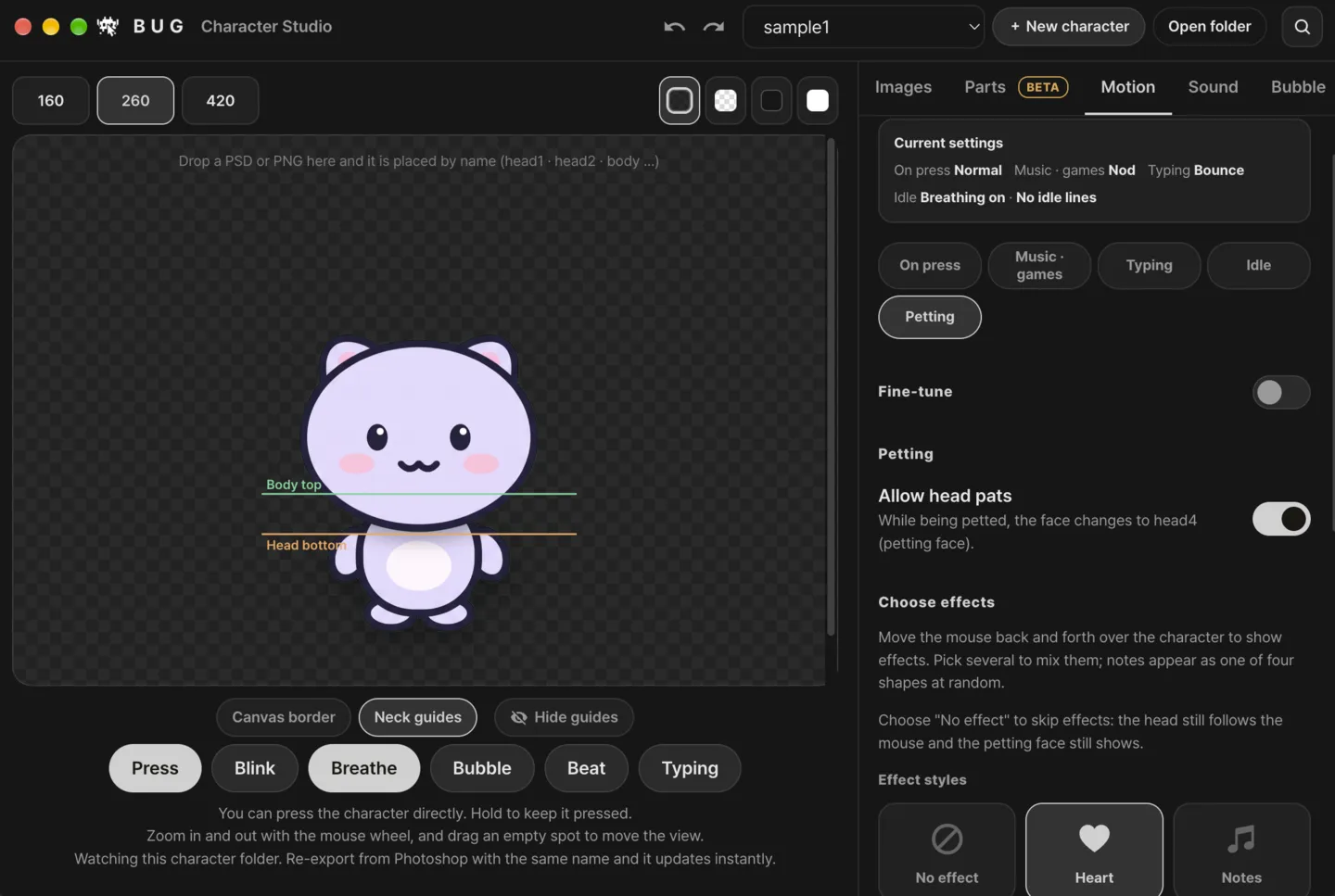
- To see head4, turn on Motion → Petting → "Allow head pats", then rub its head with the mouse. Click your pet to see the > < face, then add its lines and reactions in the app.
On a Mac the steps are the same. BUG Clicker sits in the menu bar at the top of the screen instead of the tray, so open Character Studio from its menu bar icon.
What Character Studio checks in a BUG Clicker PSD
As each picture goes into its slot, Character Studio checks it and says what looks off. If you edit your BUG Clicker PSD, these are the warnings you may see and what to do about them:
- The background isn't transparent: hide the background layer and export the part as a transparent PNG.
- The neck overlap is too small: draw the bottom of the head below the top of the body so no gap shows when the head is pressed down. At 800 × 800 it suggests 30 px or more, and Neck guides shows both lines on the stage.
- A face is a few pixels off from head1: keep head2, head3 and head4 in the same place and size as head1. BUG Clicker moves the head itself when it is pressed.
- No head3: the pet won't blink until you add one.
The sizes are only recommendations. Very large pictures are scaled down to fit the screen (2048 px on the long side) and your files stay as they are.
If head3 and head4 aren't in your PSD yet
A Clicky Pet PSD gets head3 and head4 after the pet is made, usually 1 to 3 minutes later. A PSD downloaded before then has body, head1 and head2, which is all BUG Clicker requires, so you can import it right away:
- Import the first PSD now. The pet already clicks and squishes; it just doesn't blink, and petting has no face of its own yet.
- When the page says your PSD has all five, download it again, from the same page or from My pets. It's the same file with head3 and head4 added.
- Press Load PSD again with the new file. Every slot is filled from the group names again, head3 and head4 included.
If head3 and head4 can't be made for your picture, the page says so and your PSD stays with the three parts. Your pet's files can be downloaded again for 30 days.
The other slots: back hair and side hair
BUG Clicker has four more slots that a Clicky Pet PSD leaves empty. back1 holds back hair drawn behind the body, which moves with the head. side1 holds side hair or accessories that sit in front of the head and move with it. back2 and side2 are their versions for when the pet is pressed; without them, back1 and side1 are used both ways. To add long back hair, draw it in a group named back1 and load the PSD again.
Turn on blinking and petting
Blinking and petting use head3 and head4, so they work once your BUG Clicker PSD has them:
- Blinking: with head3 in its slot, BUG Clicker blinks now and then by itself. Under Motion you can also choose how often it blinks while it moves to music or typing: never, sometimes, often or every time.
- Petting: open Motion → Petting and turn on "Allow head pats". While you move the mouse back and forth over the pet, the face changes to head4.
- Under "Choose effects" pick what floats up while you pet it, such as hearts and notes, or "No effect". You can also limit petting to the head, so rubbing the body does nothing.
If a slot stays empty after Load PSD
BUG Clicker fills a slot only from a group with that slot's name. Our PSDs use the right names, so this only comes up if you edit the PSD in another program:
- Check the group names: body, head1, head2, head3 and head4. A group whose name isn't a slot name is skipped, and after the import BUG Clicker tells you what it added and what it skipped.
- Some programs store group names differently. BUG Clicker reads Clip Studio Paint's PSDs, and if it still can't find a group, it shows the group and layer names it read.
- If a part is still missing, rasterize that layer in your editor, or add the PNG to the slot directly, as BUG Clicker itself suggests.
Change a part later
Character Studio watches the character's folder: save a part again from Photoshop under the same name and the pet updates right away. You can also replace a single slot with a new PNG from the Images tab.
Share it
BUG Clicker exports a character as a .cvclk file from its settings (share, then export). Whoever gets it imports it the same way: right-click the pet, open settings, share and import. If you only want to share your pet's art, send the PSD instead.
- When you export, you can turn on "Recipients can only add new lines": whoever gets it can't change the name, the pictures, the parts, the motion or your lines, only add their own.
- If you sell characters made this way, name BUG Clicker and credit @BUGnDEV, as the developer asks, and respect the rights of whoever drew the character.
To load a character someone sent you, open Share and use Import (.cvclk). If the sender turned off "Show speech bubbles", it won't show any bubbles even though it has lines; BUG Clicker tells you when that happens, and you can turn bubbles back on in Character Studio → Bubble.
Want your pet on the desktop without BUG Clicker too? Drop the same PSD into Clicky Pet's pet maker and put it on your desktop. Free.
Open the pet makerGet Clicky Pet